
Type Manural

Type Manural
Type is xWord's first component. It can be used to create typing effects and title effects, featuring convenient menu items for scaling, rotation, translation, randomization, and more. It offers over a dozen cursor effects, switchable with a single click. By controlling one or more menu items, you can achieve a wide variety of text and title animations. You can also quickly adjust text thickness and bevel effects to enhance the texture of 3D text.
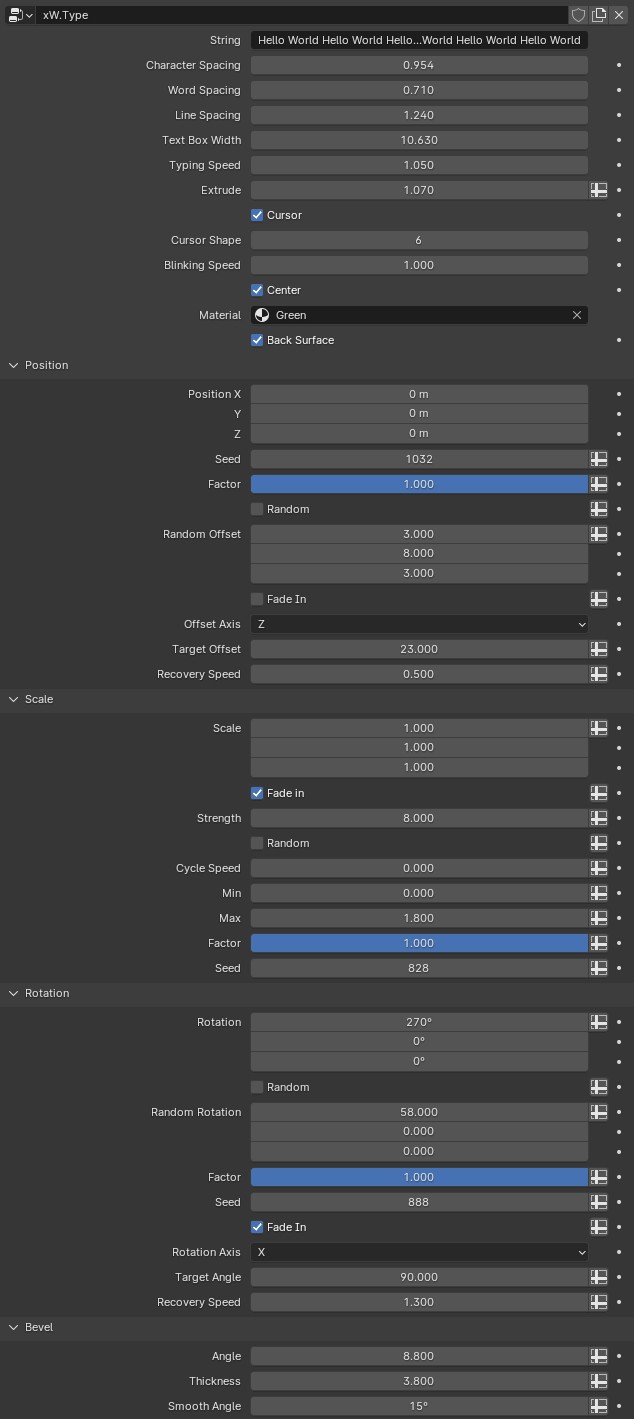
Basic adjustments
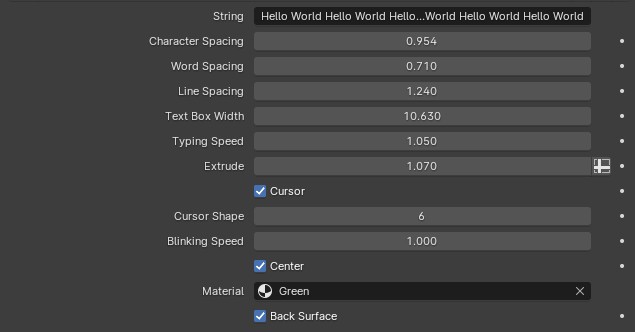
String Enter and replace the default text with your own text.
Character Spacing Adjust letter spacing
Word Spacing Adjust word spacing
Line Spacing Adjust line spacing
Text Box Width This parameter is used to adjust the width of a text box. The text box is invisible, but you can limit the maximum width of each line of text by adjusting its width. Characters exceeding the maximum width will automatically wrap to the next line. Adjusting this parameter can alleviate some typing skipping issues.
Typing Speed The higher the number, the faster the typing speed, and vice versa.
Extrude Adjust text thickness
Cursor Checking this box will display the cursor effect; unchecking it will not.
Cursor Shape To select a cursor appearance, use the left and right arrows to change the cursor number. There are currently 34 cursor appearances available (additions or removals will not be notified separately in version upgrades).
Blinking Speed The cursor blinking speed; if it is 0, it will not blink and will remain displayed.
Center Center the text vertically.
Material Choose your material as the text material.
Back Surface Display the back face. Disabling this option will prevent the calculation and rendering of the back triangles of the text, improving performance. If your animation should show the back face, please keep this option enabled.
Position
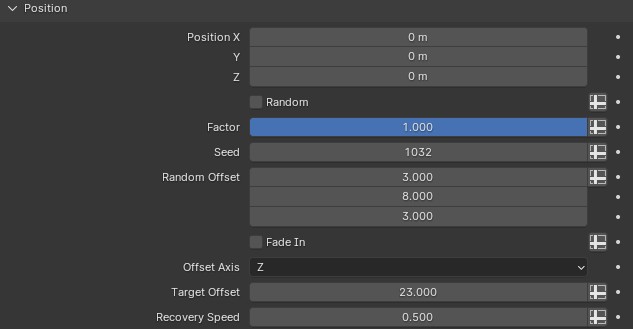
Position X/Y/Z Adjust the overall position of the text
Random If checked, random position will be enabled. The direction and size of the random position depend on the Random Offset.
Factor When Random is checked, the ratio of random effects can be adjusted using Factor. A value of 1 results in a completely random position effect, a value of 0 results in no random position effect, and a value of 0.5 will mix the current position with a random position.
Seed A random seed is used to change the distribution of different random locations. You can freely modify a value as the random seed.
Random Offset The three channel bars correspond to X, Y, and Z respectively. The value determines the size of the random range along the axis. If the values in all three directions are 0, there will be no random position effect.
Fade in If checked, the transition animation will be enabled, with the transition direction set to the axis selected by the Target Offset. The transition distance will be the value set by the Target Offset.
Offset Axis Choose the direction of the position transition animation.
Target Offset Select the distance of the position transition animation.
Recovery Speed The larger the value, the faster the position transition animation recovers.
Scale
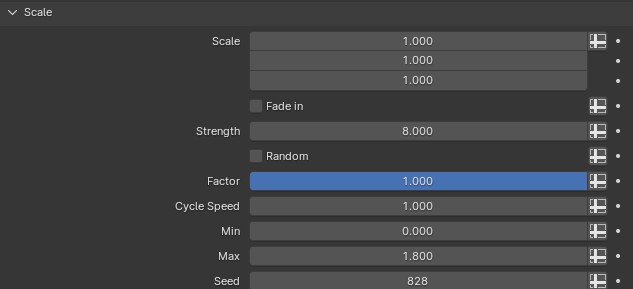
Scale X/Y/Z The three channel bars adjust the scaling of each character along the XYZ axes.
Fade in Checking this option will enable the scaling transition effect, which can be adjusted using the Strength setting.
Strength When Fade in is enabled, the larger the value of this adjustment, the wider its impact; when the value is 0, it has no effect.
Random When checked, random animation effects will be enabled.
Factor When the value is 0, there is no random effect. When the value is 0.5, the current zoom size and random zoom animation are mixed evenly. When the value is 1, the zoom x animation effect is completely dominated by the random zoom animation.
Cycle Speed Adjust the breathing frequency of the random scaling animation for each character; the higher the value, the faster the breathing speed.
Min The minimum scaling value for the scaling animation effect. For example, when the value is 0, it starts to scale up from 0 and then scales back down to 0 from the maximum value. When the value is 2, it scales down to 2 and then stops scaling down, before scaling up again, and this cycle repeats.
Max The maximum scaling value for the scaling animation. Each character will zoom in to this value and then start zooming out, repeating this cycle continuously.
Seed A random seed is used to change the initial scaling state of each character.
Rotation
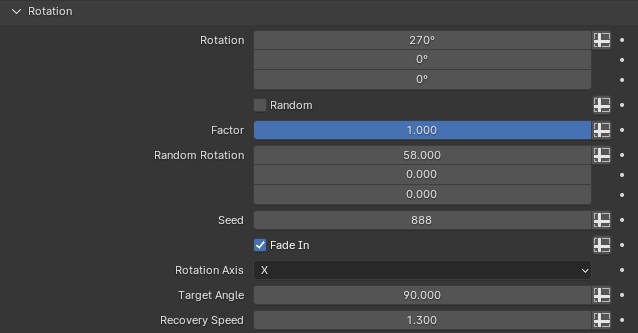
Rotation X/Y/Z Adjust the rotation angle of each character in the XYZ directions.
Random Check the box to enable random angles.
Factor When Random is checked, it is used to adjust the blending degree between random angles and normal angles.
Random Rotation X/Y/Z When "Random" is checked, you can adjust the values in the X, Y, and Z directions to change the random angle. For example, when X is 58 and the YZ channel is 0, a random angle is generated only in the X direction; the larger the value, the larger the angle.
Seed A random seed for the random angle is used to adjust the initial random angle of each character.
Fade in Checking this option enables angle transition animations. Rich angle transition animations can be achieved by adjusting Rotation Axis, Target Angle, and Recovery Speed.
Rotation Axis Select and toggle the rotation axis for the rotation transition animation.
Target Angle The target angle of rotation is selected via the Rotation Axis. This controls how many degrees the angular transition animation rotates before stopping.
Recovery Speed Adjust the recovery speed of the angle transition animation. The higher the value, the faster the animation and the smaller the area of text involved. Conversely, the lower the value, the slower the animation.
Bevel

Angle Chamfer angle
Thickness Chamfer thickness
Smooth Angle Smooth surface threshold angle